
Bad Playing’s Worst Nightmare!
FretBøred is the brand new application coming very soon to Android and Apple devices that makes ear training less of a horror show and more of a feel-good flick. With instant visual, haptic and auditory feedback you’ll really feel the rewards as you make progress. Working on your musical hearing lets you better play the things that you hear in your head. Imagine this scenario. You’re playing an improvised solo and an incredible melody comes to you in a moment of inspired genius. You try to play it only to hit a note that wasn’t what you wanted. Next thing you know you’ve played five notes searching around for that elusive right one and the moment has gone.
“NO MORE MISTAKES”
Now let’s imagine a world in which that didn’t happen because you hit the right note to start off with. The power of playing only what you want to play is within your grasp… however like, all the best things in life, it may take a little work.
Who is FretBøred for? Everyone who plays the guitar, from the least to the most experienced. Keeping your ears sharp is a skill that must be maintained no matter what your level of ability. Too often we find ourselves stuck on a train playing with our phones. Obviously not me. I’m far too virtuous <cough cough>. Well, if you/we/I must play with the phone then why not at least be working on our musicianship at the same time?
“But I’m Just A Noob!”
Completely new to ear training? Completely new to the guitar? Spook easily? Have no fear. FretBøred will walk you through the basics of how to hear the different sounds that happen in Western Music. Musicians call these sounds ‘intervals’ but you don’t need to know anything about them to start using FretBøred and improving day by day. Just follow the full tutorial and in no time you’ll be figuring out how it all works. FretBøred is designed specifically for guitar players and presents you with a virtual ‘neck’ to interact with. Simply follow the instructions and you’ll figure it out in no time. FretBored has other functions too, of course, as you’ll learn about below.
Easy To Learn, Easy To Use
👁️
“KNOW THY FRETBØRED!”
FretBøred helps you to really hone in on any weak guitar skills you may have. If you haven’t yet learned what the names of the notes on the fretboard are then you may want to start out with 👁️ NOTE NAMES 👁️ mode. Pick a string or strings to work on as well as a key and a scale – or just leave these set to their defaults if you’re not sure – and FretBored will test your reaction times. In order to make the most of musical situations and to apply music theory to real life we really need to know every note on the guitar instantly. Guitar is, for better or worse, different from piano in that the names of the notes on a piano can be learned very quickly. Guitar can take longer because of the asymmetric nature of the way we usually tune it (known as standard tuning) and because all of our ‘keys’ look the same. On a piano black keys are separate from white keys. On a guitar – well, it’s all just wood and frets.
It’s not all bad news though. The fact that our keys are really frets and the fact that they’re all more or less the same size (yes, ok, they get smaller as we go higher) means that we can do some things that piano players can’t, like change key by simply shifting our hand and playing exactly the same thing. For a pianist to do that they’d have to really know their scales but for a guitar player, no problem.
👁️ NOTE NAMES 👁️
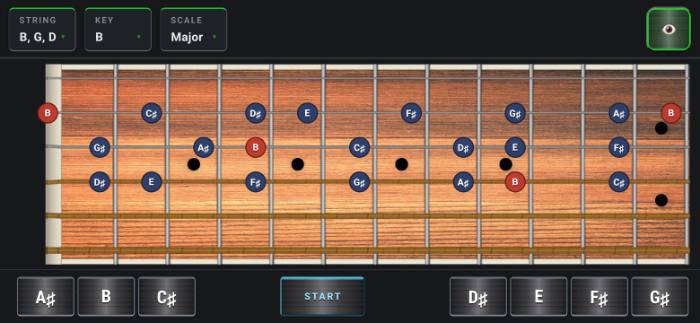
Hit the mode selection icon (top right), hit the 👁️ icon, then hit START. Ready your reaction times and answer as quick as you can with the note buttons below. You can customise your target area by selecting the string or strings you want to work on as well as picking any of the 12 keys and optionally a more challenging scale. You can arrange the buttons for speed or in a line, whatever suits you best. All your data is being tracked so you can check how you are progressing. We’ll get to that in a bit. When you’ve had enough just hit CANCEL to see a summary of your session.
👂🏽
“HARKEN TO MY TUNE”
FretBøred does much more than teach you where the notes are. It can also help you to predict how they will sound. Imagine opening your mouth and saying (in your native language) a load of jumbled thoughts one after another with no apparent connection between them. This, believe it or not, is how a lot of guitarists play. They might know a scale or two and then when it is time to play they simply launch into them, hoping for the best. In truth, sometimes this approach might get lucky… but only sometimes. Surely it would be better to express the music you hear in your head? Then you could start to play with confidence, conviction and certainty. “I don’t hear anything in my head”, you may say. This is a chicken and egg scenario. You don’t hear things in your head because you don’t know the sounds that are possible. Train your ear and you will begin to hear things with more and more clarity. This is where 👂🏽 MELODY 👂🏽 mode steps in. Just like in note names mode you pick a string to work on. This time, however, you will be confined to just one string. This is for a good reason. Guitar is horribly complicated for beginners because they can’t help but explore all the strings on the guitar. In doing so they miss probably the single most important key to learning the guitar: stay on one string. I will say it again. Stay on one string. One more time? Stay On One String. How long for? Until you’ve got it. Clear? “Not really”, I hear you say. It will become so. Until then, take my word for it.
Once you’ve got your string, key and scale sorted out (again, stick with the defaults if you don’t know what you’re doing) hit the PLAY button and listen to the note or notes that play. When the melody finishes you tap the notes on the fretboard in the order you think they are. You’ll find out if you are wrong as FretBøred will show you the right note in green and hi-light the wrong one you tapped in red. Then you need to start guessing the melody again from the beginning. Do it as quickly as you can.
👂🏽 MELODIES 👂🏽
Hit the mode selection icon (top right), hit the 👂🏽 icon and then hit PLAY to start hearing and then guessing the order of the notes in melodies you will hear. Once again you can customise your target area by selecting the string you want to work on, along with a key and scale. Tap the notes back on the fretboard in the right order. You will hear the root note of the scale (shown here in red) before the melody starts. This is your starting point in the chain. It doesn’t form part of what you have to guess but you do need it to help you to figure out the first note and from there all the others, from note to note each time. Hit ROOT anytime for that reference point again or REPLAY for a reminder.
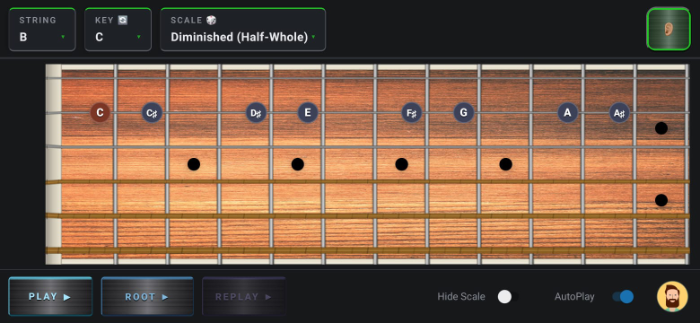
A few extra features to learn. If you want to practice all 12 keys, as some of the more serious students out there may wish to, choose “Cycle” 🔁 from the KEY option. The melodies you are tested on will then be taken from each of the 12 keys in turn so your ear gets a full workout. You can also work only in the sharp keys (good for all you die hard rock and metal players) or only in the flat keys (more useful for the jazz players out there). If you want a surprise then you can set the option to RANDOM 🎲 and a string will be picked for you each time.
These RANDOM and CYCLE options work for the SCALE and STRING selectors too. You can choose to randomise only one element while keeping the others predictable. For instance, perhaps I want to work on my major scales on the D string but I don’t mind what scale I’m tested on. Just choose RANDOM for SCALE and leave STRING set to D and SCALE set to C. Or make everything random – or some elements random and some elements cyclical. It’s entirely up to you and what you want to focus on. If you want to make things harder, hit “Hide Scale” and you’ll have to think extremely carefully because even more wrong choices open up.
🕹️
“DO YOU WANT TO PLAY A GAME?”
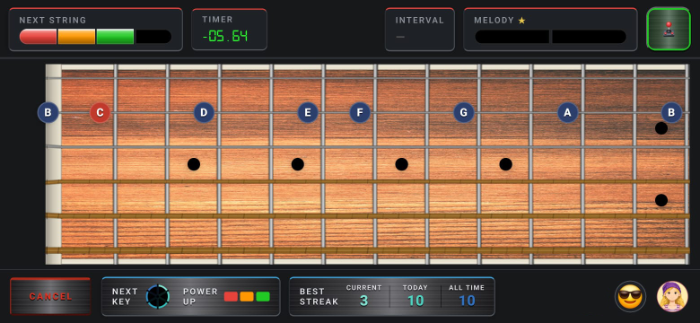
When you are looking for a challenge and/or a bit more of a video game experience, 🕹️ Game Mode 🕹️ could be just the ticket. When FretBored runs for the first time it configures the difficulty for you according to the question it asks you about your perceived competence. Don’t worry if you have under or over sold yourself. Just hit the emoticon in the bottom right corner to adjust the difficulty at any time. Doing so doesn’t mess up your progress, everything is saved, always. So feel free to experiment until you find the right kind of challenging. Within each difficulty level there is room to manoeuvre – you can choose the number of difficulty stars. Each star rating means a different number of melody notes to be guessed correctly. You can also set the tempo of the melody playback – but watch out – the higher the difficulty the higher the lowest speed you can have it played.
🕹️ GAME ON! 🕹️
Hit the mode selection icon (top right), hit the 🕹️ icon, then hit START and let the fun begin. Game Mode manages everything for you and will, depending on the difficulty level, take you through a variety of strings, keys and scales. Complete a series of melodies correctly without making any mistakes to advance to the next string (keep an eye on the NEXT STRING counter) . A single mistake and you are back to square one… UNLESS… you managed to get three melodies correct in a row. Then the POWER UP feature kicks in to give you an extra life. Manage to complete all the melodies correctly and you have to survive a quick round of note name guessing.
You had better keep your wits about you – at difficulty levels other than the lowest you will also have a TIMER which will mess up your winning streak if you don’t answer quickly enough. The higher the difficulty, the shorter the time allowed. By the time you reach MASTER difficulty level you have to answer very fast indeed. That is the point of FretBøred after all… to know instantly what the right notes are. When you reach the end of a particular key (all the strings completed) then you will be tested on note locations on all 6 strings at random. Again, you will be timed. To make things a little easier you get 3 lives which means 3 chances to continue. Fail at this final round and you get bounced back to the final string – so not very far back. Your progress is always saved so if you need to drop out for a while to have a bit of a practice with 👁️ Note Names 👁️ Mode then feel free! The higher difficulty levels do have some concessions depending on the scale type – users get a little extra time in the chromatic and diminished scales and they also will include a bit more step-wise motion (notes that are next to each other) as otherwise it becomes too difficult for more mere mortals.
A few extra features to learn. If you want to practice all 12 keys, as some of the more serious students out there may wish to, choose “Cycle” 🔁 from the KEY option. The melodies you are tested on will then be taken from each of the 12 keys in turn so your ear gets a full workout. You can also work only in the sharp keys (good for all you die hard rock and metal players) or only in the flat keys (more useful for the jazz players out there). If you want a surprise then you can set the option to RANDOM 🎲 and a string will be picked for you each time.
These RANDOM and CYCLE options work for the SCALE and STRING selectors too. You can choose to randomise only one element while keeping the others predictable. For instance, perhaps I want to work on m
🎓
“TEACH ME SOMETHING GOOD?”
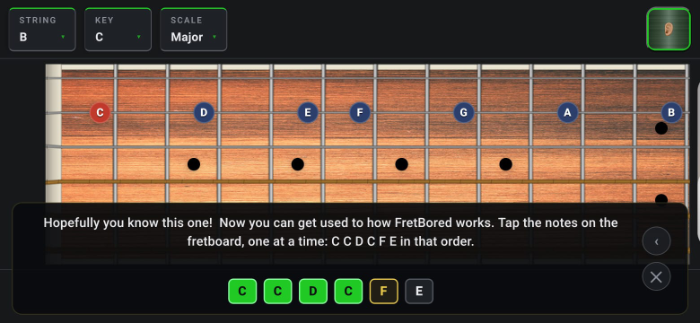
As mentioned earlier, 🎓 Tutorial Mode 🎓 is something you can access at any time from within FretBøred if you want a reminder of the workflow. If you are a complete beginner then the full tutorial is probably a good idea. When you first install FretBored, 🎓 Tutorial Mode 🎓 runs automatically. After that you’ll need to choose it from the Mode Selector icon in the top right. If you want quick help on something onscreen you can also hit the ﹖ button. Once you have, the mode selector will flash yellow. Once it’s flashing just hit something on the screen that you want to know more about and it will fill you in, or just hit the same button again to cancel.
A few extra features to learn. If you want to practice all 12 keys, as some of the more serious students out there may wish to, choose “Cycle” 🔁 from the KEY option. The melodies you are tested on will then be taken from each of the 12 keys in turn so your ear gets a full workout. You can also work only in the sharp keys (good for all you die hard rock and metal players) or only in the flat keys (more useful for the jazz players out there). If you want a surprise then you can set the option to RANDOM 🎲 and a string will be picked for you each time.
These RANDOM and CYCLE options work for the SCALE and STRING selectors too. You can choose to randomise only one element while keeping the others predictable. For instance, perhaps I want to work on my major scales on the D string but I don’t mind what scale I’m tested on. Just choose RANDOM for SCALE and leave STRING set to D and SCALE set to C. Or make everything random – or some elements random and some elements cyclical. It’s entirely up to you and what you want to focus on.
“LIES, **** LIES AND STATISTICS”
Let the data harvest commence! Here’s where you can see how your ‘medium size’ brother FretBøred – has been keeping an eye on you. Hopefully you were trying hard when you were guessing those melodies – if you weren’t then this may not be the most useful feature! I’m sure you did your best. Incidentally, if you make multiple mistakes in a row, FretBøred doesn’t track them all. Only the most significant errors are recorded in order to present the most accurate data for what you need to work on.
📊 STATS 📊
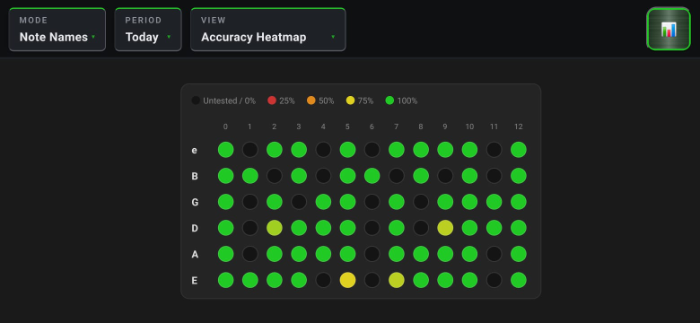
Once you have loaded 📊 Statistics Mode 📊, the first thing to do is to choose what data you want to see: Melodies or Note Names. Melodies tracks your successes and errors across both 🕹️ Game Mode 🕹️ and 👂🏽Melody Mode 👂🏽. Remember how everything was being timed? Well, now you know why! Select a time period in the next selector and then choose how you would prefer your data to be displayed. A quick glance and you can instantly see the areas you need to work on. Coming to a future version of FretBøred – a target mode to only work on the worst areas of your melodic recall.
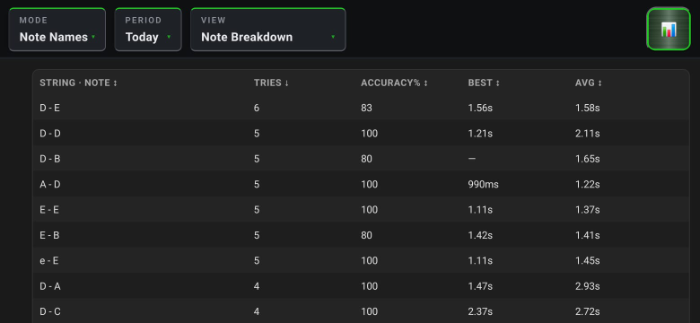
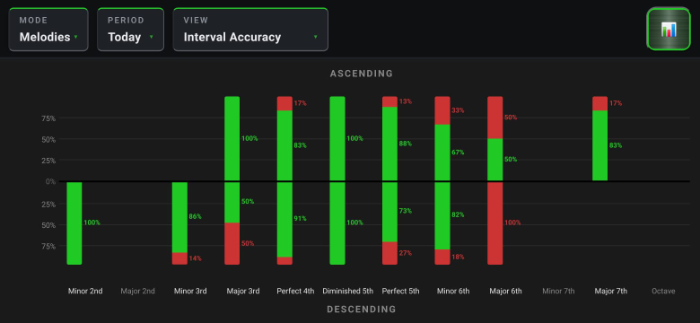
A few more of my favourite data displays: the bar chart for melody interval accuracy and the accuracy heatmap for note names. When you view the bar chart just remember that the top half of the screen is for intervals going up and vice versa.
“THIS IS THE END”
Yay, you read this far. Thanks for your patience. I hope it was a thorough enough explanation. FretBøred has been an all consuming passion of mine for the last year and a half. Even with the help of Artificial Intelligence, getting everything to work properly and iron out all the bugs has been a monumental amount of work. I lost count of the times I had to step away for days at a time just to think about how all the different components interplay with one-another. I probably had to fix somewhere in the region of 600 to 1000 bugs, formatting problems, strange and unexplained behaviour, performance issues, platform specific issues… and on and on it goes. A lot of time was spend simply trying to balance the difficulty settings. If you have feedback then please feel free to drop me a line!
Needless to say, if you anticipate enjoying using FretBøred and/or would like to support me and the future development then I will leave a PayPal link below.